12 minutes
What is LG Monitor App Manager actually doing?
I recently bought an LG 34-inch UltraWide monitor. The screen itself works great — no complaints there. But a little while after setting it up, I started to notice this LGMonitorAppManager thing on my machine:
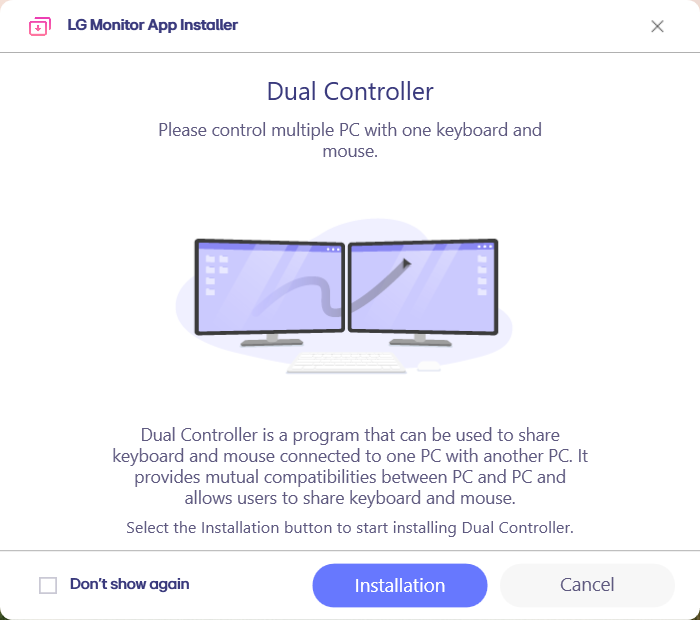
It showed up on its own — I never went to LG’s website and downloaded anything. It just appeared one day, offering to install “Dual Controller” and a few other LG utilities. I did not think about it too much at the time; I clicked the little x and moved on with my life.
Then, more recently, I came across a few X posts reporting the exact same thing, for example this one, and even a Gamers Nexus video digging into how LG ships this software through Windows Update. The consensus was some flavor of “LG is installing bloatware/adware on your PC without asking.” That matches my experience, and it is a fair complaint.
But none of the coverage I saw actually reverse engineered the binary to see what it does. That is the part I care about, so I pulled the files apart. This post is about that: which packer it uses, how to unpack it, how to recover the strings, and what the program actually does once you can read it.
The files
The program lives in a folder called LGMonitorAppManager. The interesting pieces are:
LGMonitorAppManager.exe            (.NET, WPF)        <- the brain
Executables/EDIDMgr.dll            (native)           <- reads monitor EDID
Executables/DPIHandler.dll         (native)
Executables/LGErrorHandler.dll     (native)
Executables/TracerLib.dll          (native, MFC)      <- logging
Executables/LGMonitorAppSilentInstaller.exe  (native) <- the elevated installer
Executables/LGMonitorAutoStartupApp.exe      (native) <- persistence
Ionic.Zip.dll  Newtonsoft.Json.dll                    <- third party
The first thing I checked was the Authenticode signatures. Everything native is validly signed by LG Electronics Inc., so this is genuinely LG’s software and not some third party impersonating them. The one exception is interesting: the main LGMonitorAppManager.exe — the .NET assembly that actually orchestrates everything — is not signed. Keep that in mind for later.
The native DLLs turn out to be the boring part. Their imports contain no networking APIs at all — no WinHTTP, no WinINet, no sockets. EDIDMgr.dll reads the connected monitor’s EDID (so LG can tell which of its monitors you have plugged in), DPIHandler does DPI stuff, LGMonitorAutoStartupApp.exe drops a shortcut into the Startup folder, and LGMonitorAppSilentInstaller.exe runs InstallShield setups silently. All the actual logic — the network calls, the decision making, the installs — lives in the unsigned .NET brain. So that is where I spent my time.
Unpacking the .NET assembly
Decompiling LGMonitorAppManager.exe immediately shows it is obfuscated. Every class is named with unprintable Unicode characters, and every string is gone, replaced by calls like:
Registry.LocalMachine.OpenSubKey(Class8.smethod_0(252488964));
Class8.smethod_0(int) is a string decryptor — you hand it an integer id and it returns the real string. This pattern (confusable Unicode identifiers + an int-keyed string decryptor) is the signature of Eazfuscator.NET, a commercial .NET obfuscator.
Step one is de4dot, which cleans up the control flow and renames the garbage symbols into something readable (Class8, smethod_0, etc.). But de4dot could not decrypt the strings — it reports the obfuscator as “Unknown,” because this is a 2025 build of Eazfuscator and de4dot’s engine is from 2015.
I tried pointing de4dot at the decryptor manually:
de4dot input.exe --strtyp delegate --strtok 0x06000106
This did run — every smethod_0(...) call got replaced — but every single string came out as the literal placeholder X0X. That was the clue for what is going on. Reading the decompiled decryptor explains it:
static Class8()
{
    // ...
    StackTrace stackTrace = new StackTrace(2, fNeedFileInfo: false);
    StackFrame frame = stackTrace.GetFrame(0);
    MethodBase methodBase = frame?.GetMethod();
    Type type = methodBase?.DeclaringType;
    if (type == typeof(RuntimeMethodHandle)) { /* seed A */ }
    else if (type == null)                   { /* seed B */ }
    else                                     { /* seed C */ }
    // the seed becomes the key used to decrypt every string
}
The static constructor walks the call stack and derives the decryption key from who called it. When the caller is a normal method inside the assembly, it takes one branch; when the caller is RuntimeMethodHandle — i.e. you invoked it through reflection, exactly what de4dot does — it takes a different branch and derives the wrong key. It is an anti-tamper trick: try to call the decryptor out of context and you get garbage.
The clean way around this is EazFixer, which is built specifically for modern Eazfuscator. It uses Harmony to patch that stack-based check at runtime, then lets the assembly decrypt its own strings in the correct context:
EazFixer.exe --file LGMonitorAppManager.exe --out fixed.exe
...
StringFixer: Success
Decompiling fixed.exe finally gives fully readable code, strings and all. Now we can actually see what the thing does.
What it does
The core is a class called UIManager. On startup it:
- Reads the connected monitors’ EDID (via the native
EDIDMgr.dll) to get each monitor’s vendor/product id, and keeps only the LG ones. - Checks that the machine is online.
- Fetches a JSON catalog from LG’s server:
https://lmu.lge.com/ExternalService/LGMonitorAppInstaller/MonitorAppInfo.json
https://lmu.lge.com/ExternalService/LGMonitorAppInstaller/McAfee_MonitorAppInfo.json
The MonitorAppInfo.json is the app catalog. It is an array of monitor groups; each group lists the product ids it applies to and the apps offered for those monitors. Here is one entry (trimmed):
{
  "pid_list": ["23603", "23604", "23640", "23641"],
  "vid_list": ["7789"],
  "supported_app_list": [
    {
      "app_type": "Recommended",
      "app_name": "OnScreen Control",
      "setup_url": "https://lmu.lge.com/ExternalService/LGMonitorAppInstaller/Win/OnScreen Control/Setup/Win_OSC_9.16.zip",
      "iss_url":   "https://lmu.lge.com/ExternalService/LGMonitorAppInstaller/Win/OnScreen Control/Setup/OnScreen Control.iss",
      "app_info_list": [
        { "lang_name": "English", "app_description": "OnScreen Control is an application to ...", "eula_url": "..." }
      ]
    }
  ]
}
Each app entry points at a setup_url (a zip) and an iss_url (an InstallShield silent-install response file). When you accept an app, UIManager downloads the zip, unzips it with Ionic.Zip, and hands the extracted setup.exe plus the .iss file off to the elevated LGMonitorAppSilentInstaller.exe, which runs the installer silently.
The catalog it serves me right now offers these LG applications, all hosted on lmu.lge.com:
| App | Type | Payload |
|---|---|---|
| OnScreen Control | Recommended | Win_OSC_9.16.zip (also 9.47) |
| LG Calibration Studio | Optional | Win_LCS_6.9.7.zip (also 7.5.0) |
| Dual Controller | Optional | Win_DC_2.81.zip (also 2.89) |
| LG Switch | Recommended | Win_LGSwitch_3.16.zip (also 7.60) |
| LG Channels | — | a shortcut to www.lgchannels.com, not an installed app |
“LG Channels” is a nice tell about the nature of this thing. It is not a program at all — installing it just drops a desktop shortcut that opens www.lgchannels.com/?Y2FsbGVyPU1vbml0b3ImdGFyZ2V0PWhvbWU= in your browser. That base64 decodes to caller=Monitor&target=home, i.e. an attribution tag so LG can count how many of these ad clicks came from the monitor installer. The shortcut’s target is your default browser, resolved by reading HKCU\...\UrlAssociations\http\UserChoice.
The McAfee part
There is a second catalog, McAfee_MonitorAppInfo.json, and a bunch of McAfee-specific machinery in the client. It enumerates your installed antivirus via WMI:
\\.\root\SecurityCenter2 -> SELECT displayName FROM AntivirusProduct
and if it decides McAfee should be pushed, it downloads and installs it like any other app, then fires a “conversion ping” to a tracking URL from the server config. That ping is the giveaway: this is an affiliate arrangement, where LG is set to earn a commission on every McAfee installation that comes through the monitor installer. It is the same referral economics that gets a McAfee trial bundled with so many other products — the AV enumeration decides whether you are a viable “conversion,” and the ping reports back when one lands.
The one funny detail: the McAfee bundle is a password-protected zip, and the password is hardcoded in the (unsigned) client:
McAfeeLGdasusodkug!@#
McAfee + LG + dasusodkug + !@#. I wondered whether dasusodkug was Korean typed on an English keyboard (LG being a Korean company), but mapping it through the 2-beolsik layout gives ㅇㅁㄴㅕㄴㅐㅇㅏㅕㅎ, which starts with three consonants and no vowel — not real Korean. It is just filler to make the password look strong. In any case, a hardcoded password in a shipped binary is not a security control.
I wanted to grab the McAfee installer to look at it, but I was unable to obtain it. The live McAfee_MonitorAppInfo.json currently contains zero McAfee entries, and the actual installer is nowhere I could reach: the catalog URL is static with no parameters, so there is no query that surfaces the payload, and guessing the path just returns a tiny text/html soft-404. There are a couple of plausible reasons. It could be gated server-side — by region, or by which antivirus you already have — so a generic request never gets it. But it is also entirely possible that LG simply pulled the McAfee installer after the widespread backlash over exactly this bundling, and the code path is now dormant. Either way, the McAfee capability is plainly still present in the client, even though I could not pull the actual payload.
No signature check
Here is the part I want to point out, gently. I looked for any integrity verification in the download-and-install path — Authenticode/WinVerifyTrust, a hash or checksum compared against the catalog, certificate pinning, anything. There is none. The download is simply:
webClient.DownloadFile(new Uri(setup_url), destination);
where setup_url comes straight from the server’s JSON. The zip is unzipped and the setup.exe inside is executed with elevation. Nothing between “bytes off the network” and “run as admin” checks that the bytes are what LG intended.
To be fair, I downloaded all eight LG installers and checked them, and every one is validly Authenticode-signed by LG Electronics Inc. (the newer builds even use an EV certificate). So under normal conditions you are running authentic LG code. But that is a property of what LG’s server happens to be serving today, not something the client enforces — if the server returned an unsigned or swapped setup.exe, the client would run it just the same. There is also no scheme check, so the client would follow an http:// URL if the catalog contained one; today it does not, and TLS validation is at least not disabled.
The net of it: the whole trust model rests on HTTPS and on LG keeping lmu.lge.com pristine. Whoever controls that endpoint — an origin/CDN compromise on LG’s side, or an attacker who can MITM with a certificate the system trusts — gets silent, elevated, zero-interaction code execution on every machine running this, because the software auto-starts and will happily install whatever the catalog points at. Under the right conditions that is a textbook supply chain attack. It is not something anyone can trivially exploit from the outside, but for software that shipped itself to your PC uninvited and runs at boot, “we only pinky-promise the server is fine” is a thin guarantee.
How does this even get on your machine?
The part that bothered most people, including me, is that nobody installed this. You buy a monitor, plug it in, and some time later it is just there. The common explanation online is “Windows Update,” and that turns out to be exactly right — but the mechanism is more specific and more interesting than “Windows Update installs random programs,” so I dug the trail out of my own machine.
It rides in on a driver, using Microsoft’s Hardware Support App (HSA) feature. Here is the chain, all verifiable locally with pnputil and the registry:
- You connect the monitor. Windows sees its PnP hardware id — on my machine
DISPLAY\GSM77E8, “Generic Monitor (LG ULTRAWIDE)”. - Windows Update matches that id and automatically pulls down two LG driver packages, both WHQL-signed by “Microsoft Windows Hardware Compatibility Publisher” (i.e. they went through Microsoft’s hardware certification and are distributed through Windows Update itself):
- a monitor extension INF (
monitor.inf), which among other things advertises a child device literally named “LG Monitor Support Application”; - a SoftwareComponent INF (
lgmonitorappsoftwarecomponent.inf), which matches that child and runs anAddSoftwaredirective.
- a monitor extension INF (
- That directive is the whole trick:
[LG_Monitor_Control_Install]
SoftwareType=2
SoftwareID=pfn://LGElectronics.LGMonitorApp_cfnzzhwkr8z5w
SoftwareType=2 with a pfn:// id means “go install this Microsoft Store app by its package family name.” So Windows fetches LGElectronics.LGMonitorApp from the Store and installs it. On my machine it landed at C:\Program Files\WindowsApps\LGElectronics.LGMonitorApp_1.2606.1601.0_x86__cfnzzhwkr8z5w, SignatureKind = Store, version 1.2606.1601.0 — the exact binary I had been reverse engineering. The INF does not even hide what it is; one of its strings is Hsa.ComponentDesc = "LG Monitor Support Application", and HSA is Microsoft’s own acronym for Hardware Support App.
So, does Windows Update install third-party programs? Not arbitrary .exe files, no — but through this sanctioned path, effectively yes. A WHQL-signed driver is allowed to pair itself with a companion app via AddSoftware. There are two flavors: SoftwareType=1 is a Win32 executable bundled inside the driver package and run once, and SoftwareType=2 is a Microsoft Store (MSIX) app referenced by package family name. LG uses type 2, so what you get is a packaged, Store-signed app that a Windows-Update-delivered driver quietly requested on your behalf.
Here is the nuance that ties this back to the rest of the post. The Microsoft-blessed, signed, sandboxed part of this whole story ends at “a Store app is installed.” Everything that app then does — phoning lmu.lge.com, and downloading and silently installing classic Win32 installers with no signature check — happens entirely outside the Windows Update and Store trust model. Windows Update delivered a signed driver, the driver requested a signed Store app, and that Store app is the thing that goes off and side-loads everything else. The trust chain quietly falls off a cliff at the last step.
Conclusion
So what is LG Monitor App Manager? Honestly, it is fairly ordinary adware. It detects your LG monitor, phones home for a list of LG apps and promotions, nudges you to install them, quietly bundles a McAfee referral, and plants a tracked shortcut to an ad-supported streaming service. Nothing here is malware, nothing exfiltrates your files, and it is all signed by LG. As adware goes, it is tame.
What still surprises me is the delivery. I did not install this. I did not visit lg.com. I plugged in a monitor, and Windows Update — by way of a signed driver and the Hardware Support App mechanism above — installed a Store app that then set itself to run at every boot and started offering to install more software. The HSA part is a legitimate Windows feature and works as designed; what unsettles me is what LG chose to put at the end of it. Shipping an auto-updating, self-starting software distribution channel to people simply because they bought your monitor — and wiring up its final stage with no signature checks on the payloads — is a lot of trust to ask for a brightness-control utility. If you have an LG monitor and would rather not have this, uninstalling the “LG Monitor” software, deleting the shortcut from your Startup folder, and disabling the corresponding StartupTask will get rid of it, at least until the next time you reconnect the monitor.